Chapter 05The E:Voice Manual
Where the noise goes
What you'll get. How E:Voice keeps tool calls, thinking and progress out of your way without hiding them from you.
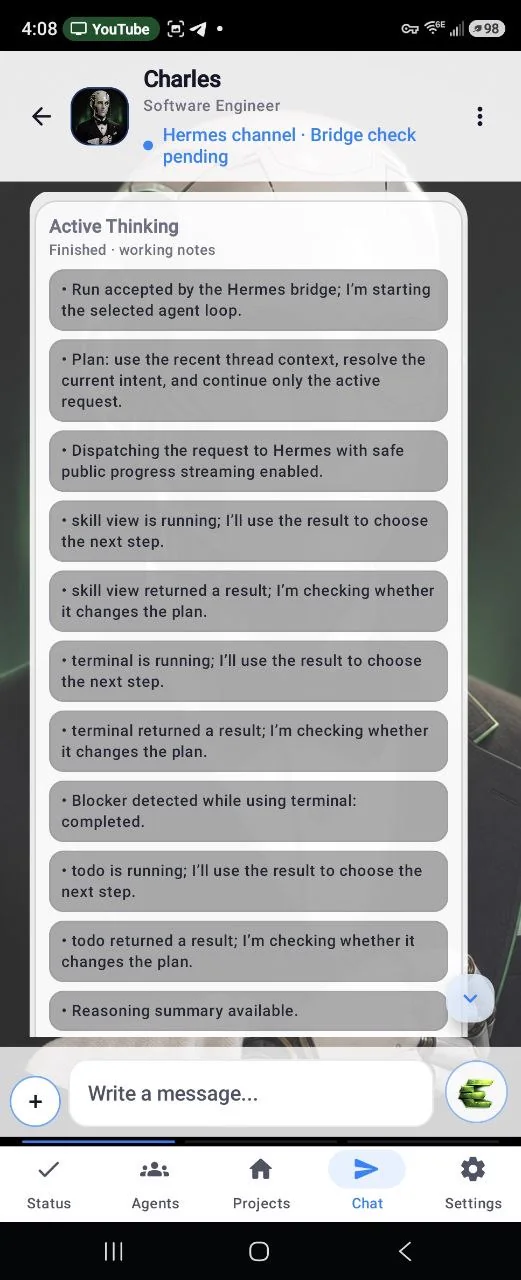
An agent doing real work generates a lot of noise — searches, file reads, terminal output, half-finished reasoning. Most apps either hide all of it or dump all of it into the thread. E:Voice does neither. It puts the noise in two cards that sit above the answer, collapsed until you want them.
The two cards
- Tool Transparency — what the agent did. Each tool call with its outcome and how long it took, newest first, with a count of everything earlier.
- Active Thinking — what the agent was working through. Its own interim notes, in its own words.
Collapsed, each is a single chip with a count. Tap it and it opens; tap Collapse and it closes again. Open cards show the four most recent entries with a Show all link for the rest — useful when a long run has thirty of them and you only care about the last few.
When they open by themselves
The cards open on their own the first time a real entry arrives, but never in the first half-second, so a quick answer doesn't flash a card at you and close it. If a turn goes quiet for five seconds with nothing to show, the card opens anyway — a stall you can see beats a spinner you can't.
If you would rather they always stayed shut, there is one switch in Settings: “Always minimize Active Thinking and Tool Transparency” — “Keep both as collapsed chips. They will not open automatically when entries arrive; tap either chip to expand it.”
Agent Updates
Sometimes an agent speaks up without being asked — progress on a long job, something it noticed. Those arrive as Agent Updates, gathered into one box with a counter and a chevron, placed at the exact point in the thread where they came in.
The box stays open by default. Tap the header to collapse the whole thing; tap any numbered row to expand that one update into full formatting, with its own read-aloud button. When you send a message, that box seals and scrolls up with the conversation like any other message — the next run opens a fresh one. Counters restart in each box, which is worth knowing before you wonder why you are back at 1.
What you can do with a message
Under any assistant reply:
- Read out loud — plays that message. Chapter 02 covers what it does with code blocks and tables.
- Save as document — files the reply into E:Docs. The button walks through Saving to Saved · Open, and tapping it then opens the document. Saving the same reply twice updates the same document instead of making a second one.
- Long-press for Copy text, Select message, and Report response.
The chat's own menu adds Attach photos or files, Screenshot, Take a photo, Voice provider usage, Context Review, Clear Context, Model & Usage, Stop execution and Clear History.
Changing your mind mid-run
There is no “steer” button, because you don't need one. Send a new message while the agent is still working and the new message supersedes the old request in that conversation. Frank tells you when it happens, in the first person: “Hey — I steered that over to … The earlier request was still running, so I stopped waiting on it and sent your new message instead.”
Two honest limits on that. A steer only affects the conversation you sent it from — never another chat, and never a turn whose answer already arrived. And the abandoned request's late answer is discarded rather than delivered ten minutes later, which is what “stopped waiting” means. When you want a hard stop instead, the menu has Stop execution.
When something has to be left out
Occasionally a reply comes back malformed and part of it can't be shown safely. When that happens you get one calm sentence: “I couldn't include part of that response.” It never explains itself with internal machinery, and it is never silent about the omission. If what's left doesn't stand on its own, you get the sentence by itself rather than a confusing fragment with a warning stapled to it.