Chapter 06The E:Voice Manual
Give the work a home
What you'll get. Make a project, route work into it, and hand part of a conversation to another agent.
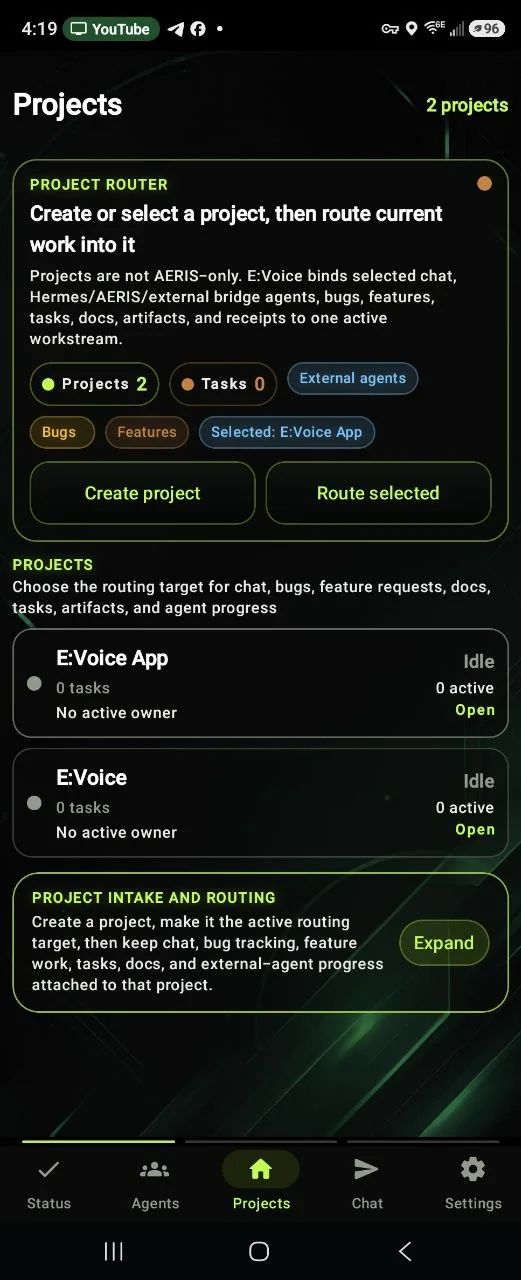
A conversation is a great place to figure something out and a terrible place to keep it. A project is the durable version: a named lane that holds tasks, bugs, docs, artifacts, agent progress and receipts, so the work survives the scroll.
Making one
The Projects tab opens on a card called Project Router — “Create or select a project, then route current work into it.”
- Tap Create project. The intake card appears: “Create a project, task, bug, or doc without scrolling the Projects page.”
- Leave “Add” set to Project. The same card also makes tasks, bug tasks and documentation tasks — the form changes to match.
- Name it. The placeholder suggests the shape: “Project name, e.g. E:Voice”. The Create button stays greyed until there is a name.
- Say what routes here. The description field prompts you with “Bugs, features, product work, agent progress, repos, proof…”
- Fill in as much of the rest as you feel like. Four optional fields cover brand, code and server locations, working preferences, and default rules for proof and triage. Blank is fine.
Back on the router, Route selected makes a project the active target. From then on, chat, bugs, feature requests, docs, tasks, artifacts and agent progress attach to that project instead of floating loose.
What's inside one
Open a project and you get sections for project context and profile, bug trackers, docs and notes, brand assets, receipts, runtime seats, a Top Foreman slot, assignments and artifacts, and a recent-activity feed.
Tasks move along a simple board. Something in Inbox gets marked Ready; Ready gets Start; in-progress can be Blocked or Done; blocked goes back to Ready; done can be Reopened. No ceremony, no custom workflow editor.
Brand assets — logos, mockups, screenshots, references — stay on the phone by default: “Project brand cards stay local and can be injected into AERIS Node when memory setup is enabled.”
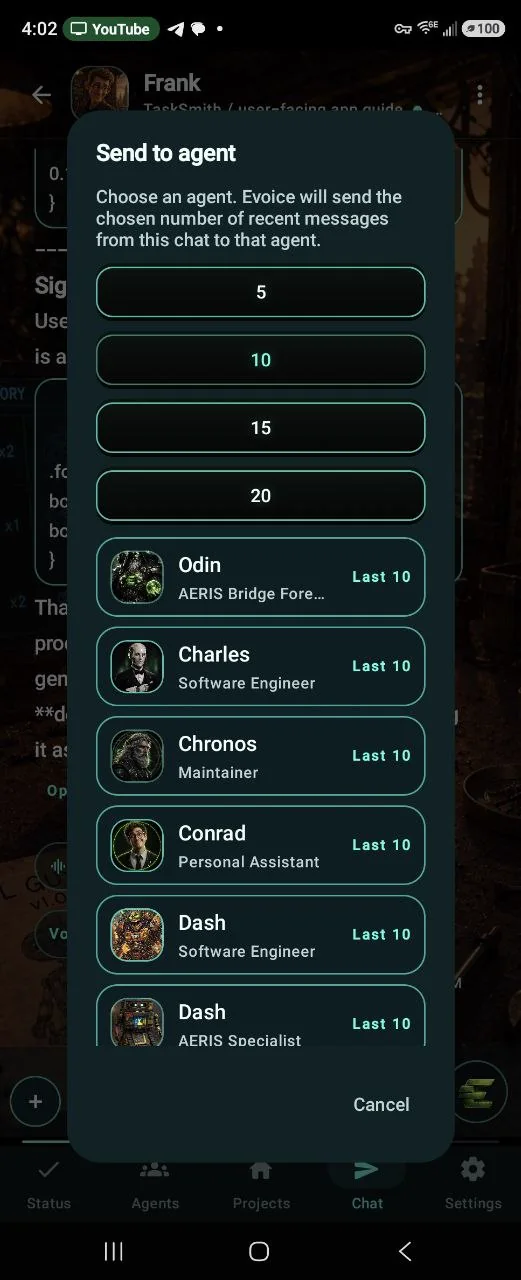
Send to agent
The other half of this chapter is handing a piece of a conversation to somebody else. Open the chat menu and choose Send to agent.
- Pick how much to share. A row of numbers — 5, 10, 15, 20 — sets how many recent visible messages travel.
- Pick who gets it. Each agent shows a “Last 10” style button. Agents with several threads expand so you can choose which one, with a tick on the usual destination.
- Send. You get a plain confirmation — “Delivered to …” — or an honest failure. If nothing is paired yet you'll see “No other paired agents are available yet.”
Landing in the right place
If an agent has several threads, E:Voice quietly uses the most recent one — but only while it is genuinely recent. If the last thread is stale it stops and asks rather than guessing: “The most recent thread for … is …, last used … Choose that old thread explicitly or choose a new thread.” Nothing is sent until you pick.
Same for duplicate names. Two agents called the same thing produces a list of candidates with their IDs instead of a coin flip. And when delivery can't be confirmed, it says so — “Delivery was not verified, so it is not reported as sent” — instead of showing a tick it doesn't deserve.
Docs, in passing
Anything worth keeping becomes an E:Doc. There are two ways in: the New button on the Docs screen, which asks for a title, a project and a type (Document, Note, Checklist, Bug Tracker, Report); or the Save as document button under an assistant reply, which files that reply directly.
From a doc you can Copy, Export, or Send to an agent — and the send dialog repeats the same discipline: “Prepare a discussion-first handoff. Sending stores a message in the agent chat; it does not execute work by itself.”